Inbox View DEMO
This feature is currently in demo mode with static data. Full functionality is coming 26 January 2026.
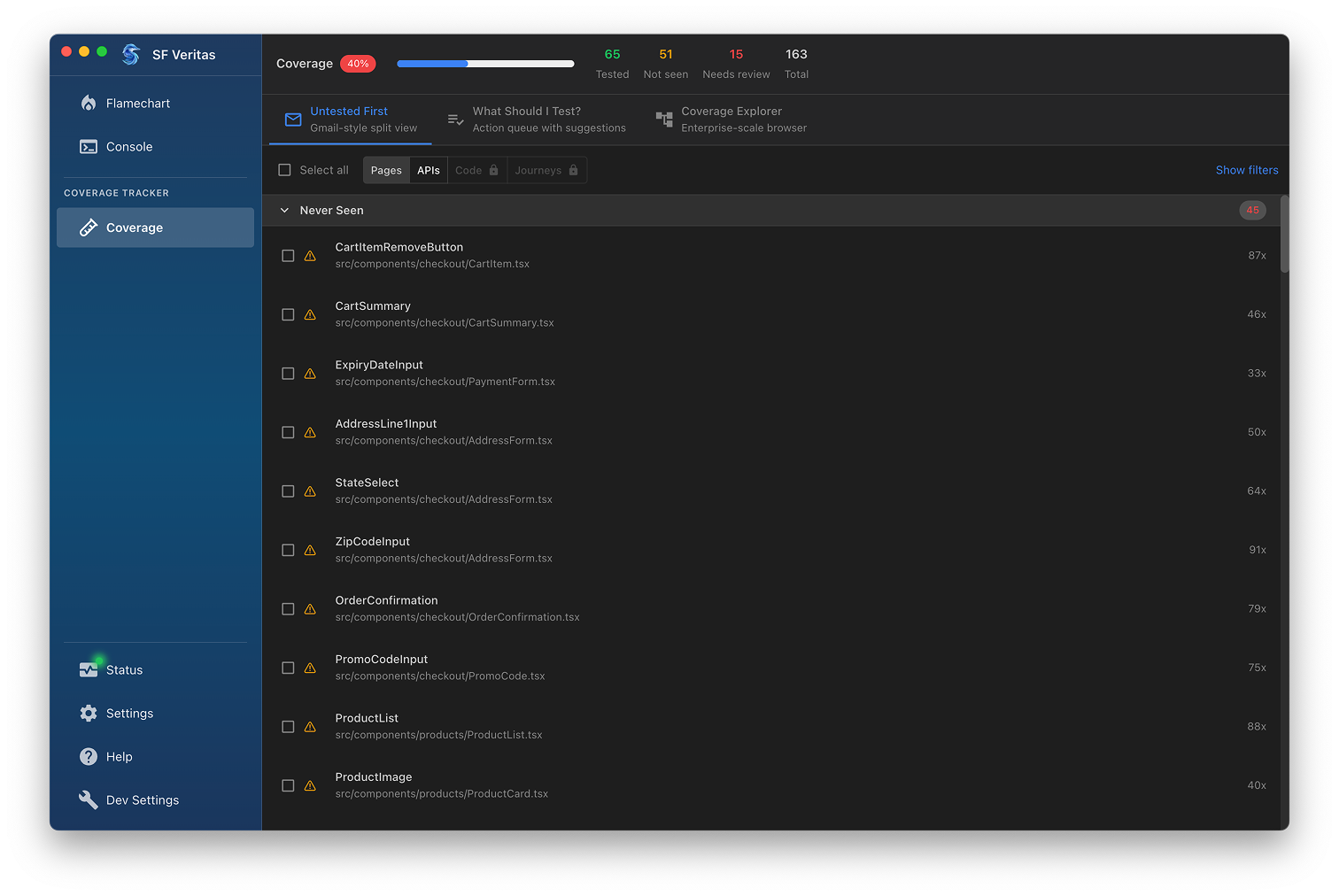
The Inbox view provides a Gmail-style interface for managing your verification queue. It organizes components by their testing status and helps you systematically work through items needing attention.
Overview
The Inbox view is designed for methodical verification workflows. Components are grouped by status categories and sorted by priority within each group, making it easy to see what needs attention first.
Status Groups
Components are organized into collapsible sections:
Never Seen
Components that have been rendered in your application but have never been tested or verified. These are your highest priority items.
Needs Review
Components that were previously tested but have changed since their last verification. Code changes, behavior updates, or failed tests move components here.
Tested
Components that have been verified and are up-to-date. These are collapsed by default to keep focus on items needing attention.
Skipped
Components you've intentionally marked to skip (e.g., third-party components, deprecated features).
Working with the Inbox
Selecting Components
- Click a row to view component details in the side panel
- Check the checkbox to select a component for bulk actions
- Select All selects all visible components in the current filter
- Shift+Click selects a range of components
Render Count
The number displayed on the right (e.g., "87x") indicates how many times the component has been rendered during recorded sessions. Higher render counts often indicate more critical components.
Filtering
Use the tabs at the top to filter by component type:
- Pages - Top-level page components
- APIs - API endpoints and data fetching components
- Code - Utility functions and hooks (coming soon)
- Journeys - User flow sequences (coming soon)
Click Show filters to access advanced filtering options:
- Filter by status
- Filter by file path
- Filter by render count
- Filter by date ranges
Keyboard Shortcuts
| Shortcut | Action |
|---|---|
↑ / ↓ | Navigate between items |
Space | Toggle selection |
Enter | Open component details |
Escape | Clear selection |
Ctrl/Cmd + A | Select all |
Best Practices
- Start with "Never Seen" - These components have no test coverage at all
- Prioritize high render counts - Frequently rendered components are more critical
- Use bulk actions - Select multiple similar components and generate tests together
- Review periodically - Make inbox review part of your development workflow