Action Queue DEMO
This feature is currently in demo mode with static data. Full functionality is coming 26 January 2026.
The Action Queue (also called "What Should I Test?") provides AI-powered suggestions for your next testing actions. It analyzes your codebase and usage patterns to recommend the most impactful components to verify.
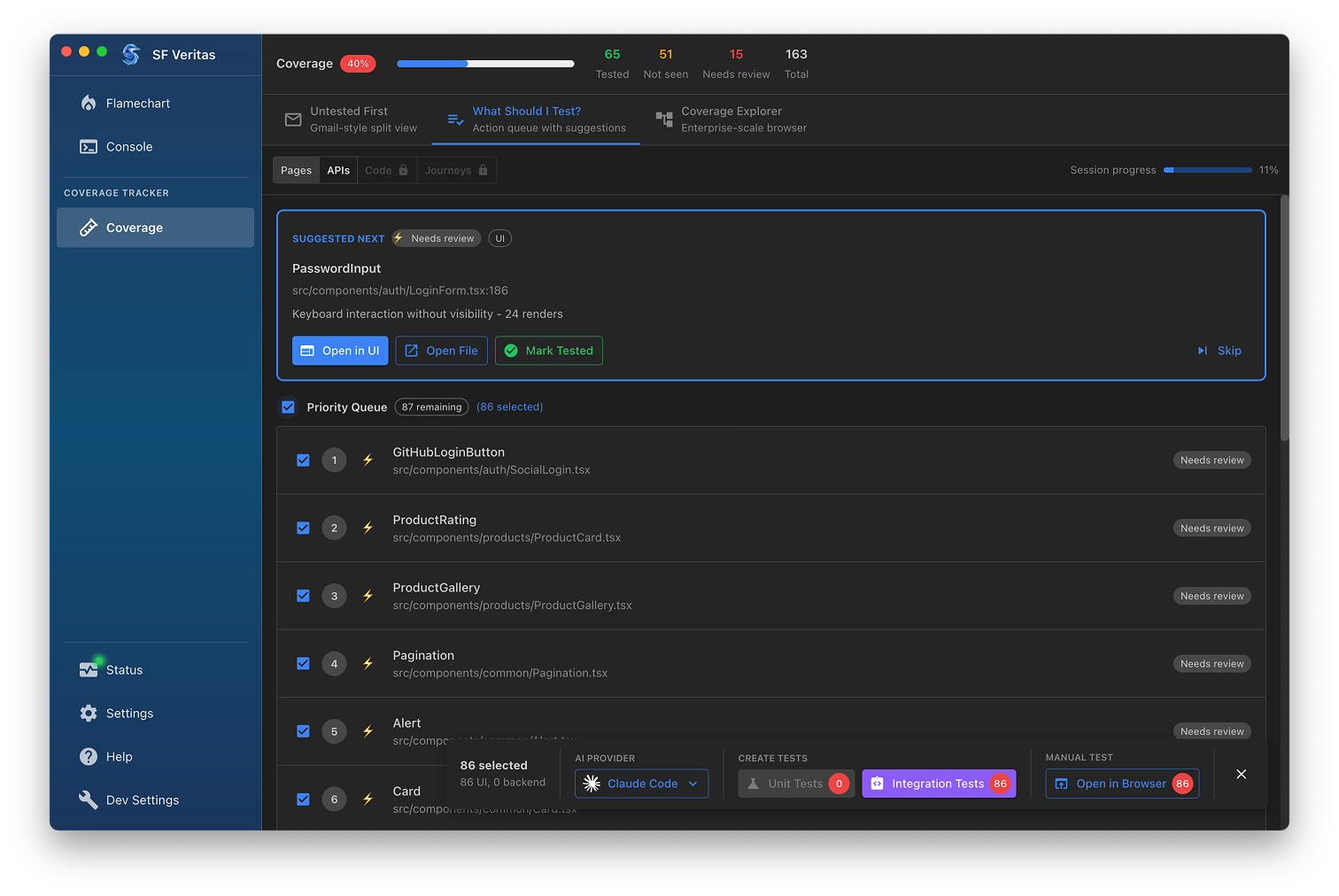
Overview
Instead of manually deciding what to test next, the Action Queue intelligently prioritizes your verification work. It considers multiple factors to surface the components that will provide the most value when tested.
Suggested Next
At the top of the view, you'll see the Suggested Next card highlighting the single most important component to test right now. This recommendation is based on:
- Verification status (untested components rank higher)
- Render frequency (more frequently used = higher priority)
- Code complexity
- Recent changes
- User interaction patterns
Quick Actions
The Suggested Next card includes action buttons:
- Open in UI - Launch the component in your running application
- Open File - Open the source file in your editor
- Mark Tested - Mark the component as verified
- Skip - Skip this component and move to the next suggestion
Priority Queue
Below the suggestion, you'll find the numbered Priority Queue - a ranked list of components ordered by testing priority. Each item shows:
- Priority number - Relative importance (1 is highest)
- Component name - The component or function name
- File path - Location in your codebase
- Status badge - Current verification status
Selecting Items
Check the boxes next to items to select them for bulk actions. The selection counter shows how many items are selected (e.g., "86 selected").
Session Progress
The Session progress indicator in the top-right shows how much of your verification queue you've addressed in the current session. This helps you track your testing momentum.
AI-Powered Test Generation
The bottom toolbar provides powerful AI integration:
AI Provider
Select your preferred AI coding assistant:
- Claude Code (default)
- GitHub Copilot
- Cursor
- Other tools
Create Tests
Generate tests for selected components:
- Unit Tests - Generate focused unit tests for individual components
- Integration Tests - Generate tests that verify component interactions
When you click a test generation button, the AI will:
- Analyze the selected components
- Generate appropriate test code
- Open your AI assistant with the generated prompt
Manual Test
Click Open in Browser to launch the components' pages for manual testing. The badge shows how many pages will open.
Workflow Tips
- Start each session by reviewing the Suggested Next item
- Work through the queue in priority order for maximum impact
- Use batch selection to generate tests for related components together
- Track session progress to maintain testing momentum
- Skip strategically - Some components (like third-party wrappers) may not need custom tests
Priority Algorithm
The Action Queue considers these factors when ranking components:
| Factor | Weight | Description |
|---|---|---|
| Never tested | High | Components with zero test coverage |
| Needs review | Medium-High | Previously tested but code changed |
| Render count | Medium | Frequently rendered = more critical |
| Complexity | Medium | More complex code = more risk |
| Recent changes | Low-Medium | Recently modified code needs attention |
| User interactions | Low-Medium | Components users interact with directly |