Verification Tracker DEMO
The Verification Tracker is currently in demo mode with static data. Full functionality is coming 26 January 2026.
The Verification Tracker helps you ensure comprehensive testing coverage of your application's UI components, APIs, and user journeys. It intelligently prioritizes what needs testing and guides you through the verification process.
Why Verification Matters
Software verification is critical for maintaining application quality:
- Catch regressions early - Identify untested components that could break without notice
- Prioritize testing efforts - Focus on the most critical and frequently-used features first
- Track progress - Monitor your verification coverage over time
- Automate test generation - Use AI to help create unit and integration tests
Views
The Verification Tracker provides three complementary views to help you manage testing:
1. Inbox (Untested First)
A Gmail-style split view that surfaces components needing attention. Items are grouped by status (Never Seen, Needs Review, etc.) and sorted by priority.
Learn more about the Inbox view →
2. Action Queue (What Should I Test?)
An AI-powered suggestion engine that recommends what to test next based on:
- Component complexity and risk
- User interaction frequency
- Recent code changes
- Test coverage gaps
Learn more about the Action Queue →
3. Verification Explorer
An enterprise-scale browser for navigating large codebases with thousands of components. Features hierarchical navigation, advanced filtering, and bulk operations.
Details Panel
When you select a component, the Details Panel shows comprehensive information across four tabs:
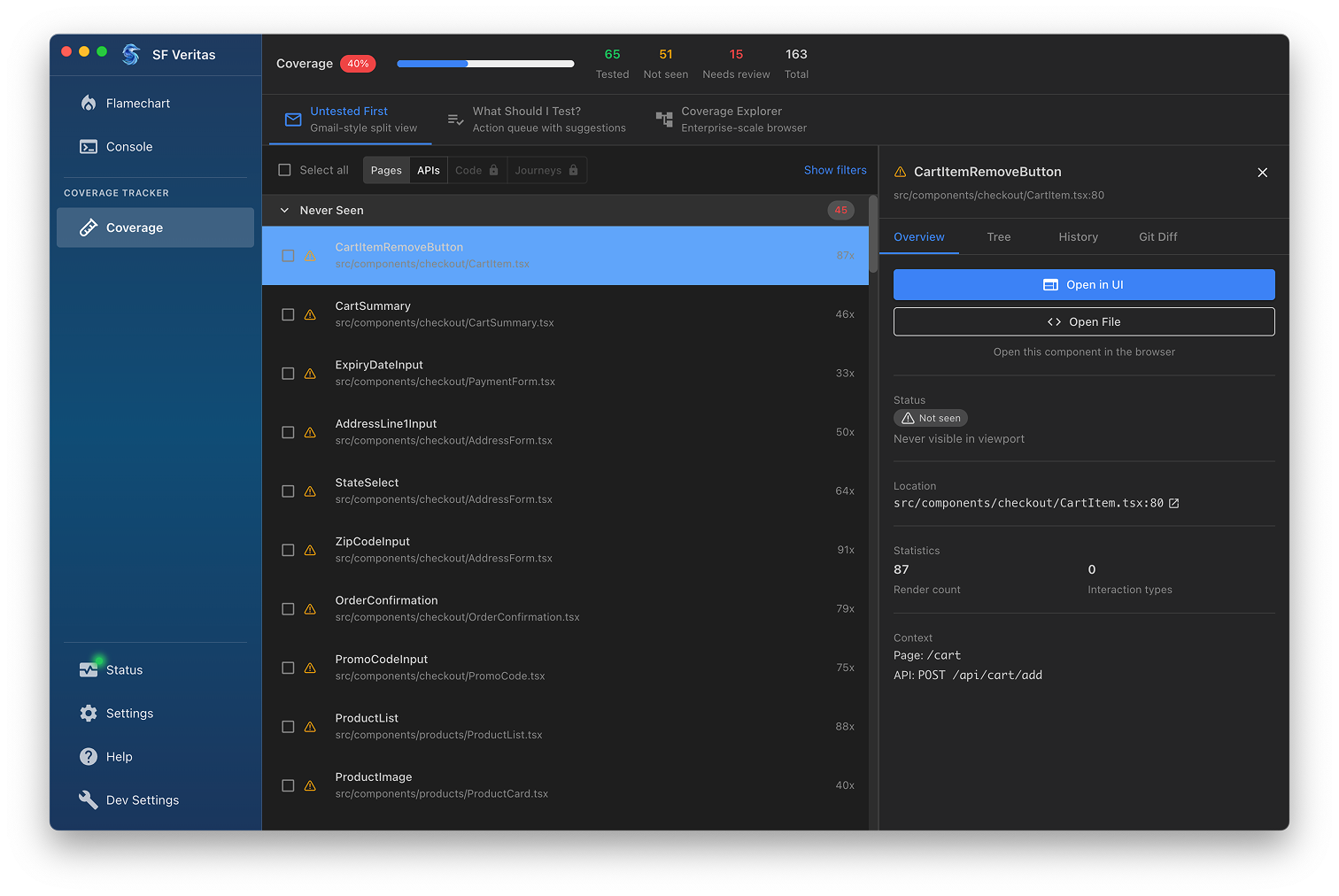
Overview
Quick summary including:
- Component name and file location
- Current verification status
- Render count and interaction frequency
- Associated page URLs
Tree
Visual hierarchy showing:
- Parent/child component relationships
- Component dependencies
- Related test files
History
Timeline of component activity:
- When it was first seen
- Status changes over time
- Test execution history
- Code modification dates
Git Diff
Code changes related to the component:
- Recent commits affecting the file
- Diff view of changes
- Author and commit information
Getting Started
- Open SF Veritas and navigate to Verification in the sidebar
- Start with the Inbox view to see components needing attention
- Use the Action Queue for AI-guided testing suggestions
- Select components and use bulk actions to generate tests
Bulk Actions
When you select one or more components, the bulk actions toolbar appears:
- Create Unit Tests - Generate unit test code using Claude Code or other AI tools
- Create Integration Tests - Generate integration test code
- Open in Browser - Launch the component's page in your browser for manual testing
- Mark as Tested - Update the verification status